ScriptableObject to JSON: Custom Data Serialization Tool for Unity
This project showcases how to use ScriptableObjects and JSON to handle data serialization in Unity, a common challenge for developers. I’m a huge fan of Unity’s Editor API and the power it offers for creating custom tools that enhance workflow and boost productivity. ScriptableObjects are another favorite Unity feature of mine. They make it really easy to organize and decouple “design” data from core game logic.
In this example, I’ve built a custom editor tool to save player and enemy stats to external JSON files. This setup could be easily adapted for other usecases, like saving quest objectives or item information. A key advantage of this approach is that it allows modifying game data outside of Unity. This opens the door for other possibilities like sharing unique configurations with collaborates or adding modding support to a project.
To access the full code, click the link at the top right to visit my GitHub and download the Stats2JSONClassFiles.zip file.
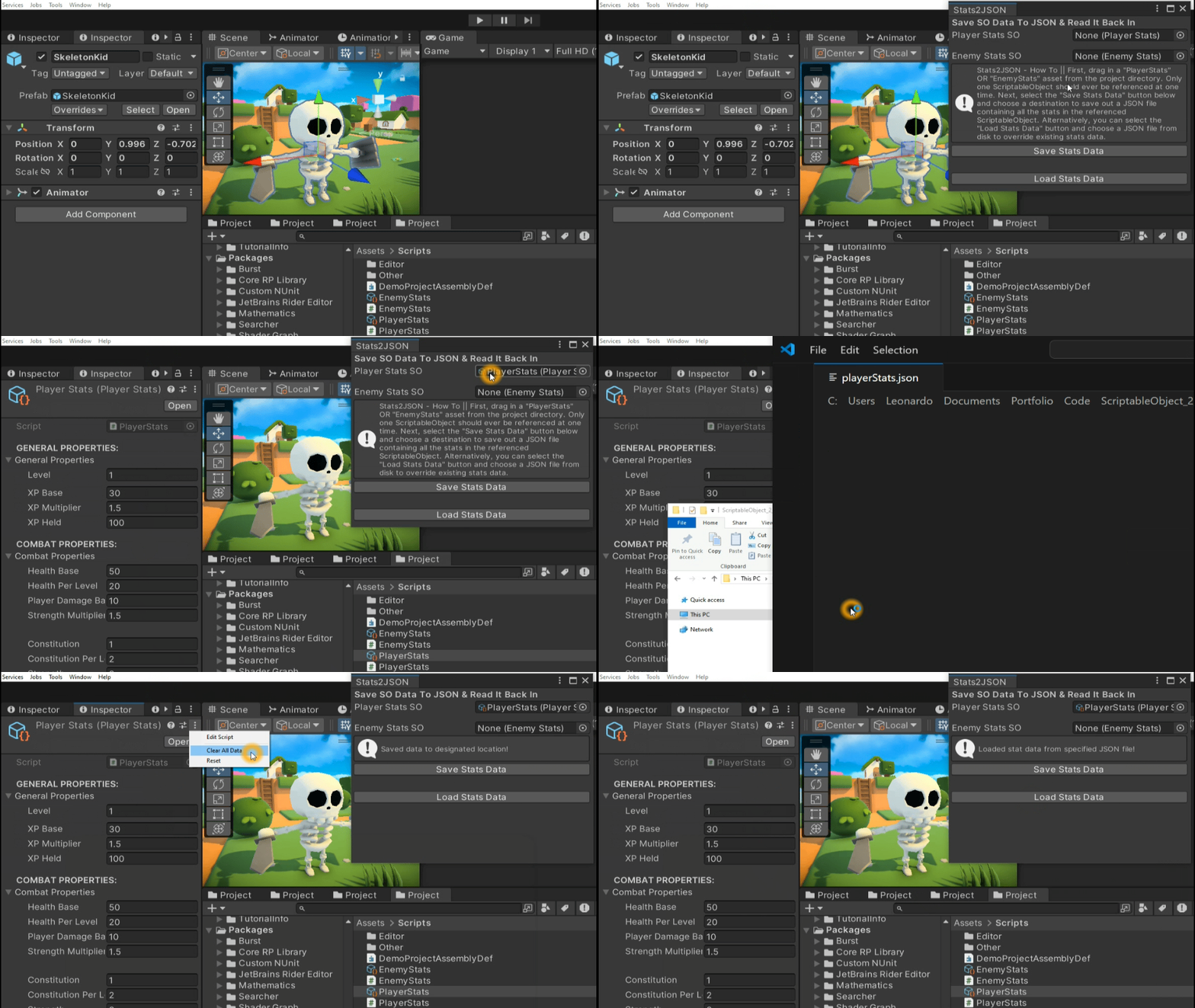
~~~~~~~~~~~~~~~~~~~~~~~~~~~~~~~~~~~~~~~~~~~
BREAKDOWN - Stats2JSON.cs
Here I created a class that acts as the wrapper or container for the data I want to serialize. It is marked as [System.Serializable] so that it can be saved with Unity’s built-in serializer. This is a requirement for using the **JsonUtility.FromJson
[System.Serializable]
private class MySerializationWrapper
{
    public List<StatData> MasterStatDataList;
}
This is how you create a “ScriptableObject” asset reference field from a custom type “PlayerStats” in an editor GUI. This creates the drag and drop fields in the utility’s UI. “SerializedObject” is how you can work with ScriptableObjects in the editor.
/*This code block is various snippets from the Stats2JSON.cs class*/
//...

[SerializeField] private PlayerStats playerStatsSO;
private SerializedObject serializedObject;

//...

private void OnEnable()
{
    serializedObject = new SerializedObject(this);
}

//...

serializedObject.Update();

//...

SerializedProperty playerDataSO = serializedObject.FindProperty("playerStatsSO");
EditorGUILayout.PropertyField(playerDataSO, true);
serializedObject.ApplyModifiedProperties();
Here I take the ScriptableObject data and put it inside the serializable wrapper class container with “JsonUtility.ToJson()”. Then I use “File.WriteAllText()” to write the data to the disk.
string json = JsonUtility.ToJson(new MySerializationWrapper { MasterStatDataList = StatsSODataStructList }, true);
File.WriteAllText(pathToSaveFile, json);
I use reflection here to check the stat properties in each dictionary to see which subclass “generalProperties” or “combatProperties” the stat belongs to with (typeGeneralProperties.GetProperty(entry.Key) != null). Then I call the internal function in the subclasses called “InjectStatData…()” and inject the stat data back into the ScriptableObject for assignment.
Type typeGeneralProperties = playerStatsSO.generalProperties.GetType();
Type typeCombatProperties = playerStatsSO.combatProperties.GetType();

foreach (KeyValuePair<string, int> entry in dictionaryInt)
{
    if (typeGeneralProperties.GetProperty(entry.Key) != null)
    {
        playerStatsSO.generalProperties.InjectStatDataInt(entry.Key, entry.Value, 0f);
    }
    else if (typeCombatProperties.GetProperty(entry.Key) != null)
    {
        playerStatsSO.combatProperties.InjectStatDataInt(entry.Key, entry.Value, 0f);
    }
}
“SetDirty()” tells the Unity editor that these assets have been modified so that the changes will be saved the next time the active scene is saved. Failing to do this could result in the data being lost when loading a new scene or restarting the editor for example.
EditorUtility.SetDirty(playerStatsSO);
EditorUtility.SetDirty(enemyStatsSO);
~~~~~~~~~~~~~~~~~~~~~~~~~~~~~~~~~~~~~~~~~~~
BREAKDOWN - PlayerStats.cs
This is the “InjectStatData()” function called by the editor utility. It also uses reflection to check the incoming stat properties against its own properties to find matches with type.GetProperty(nameOfPropertyInThisClass,…). Once the matching property is found, the value is assigned. I also check the property’s type to correctly sort the integer stat values from the floats with the if/ else condition.
public void InjectStatData(string nameOfPropertyInThisClass, int valueInt, float valueFloat)
{
    Type type = this.GetType();

    PropertyInfo property = type.GetProperty(nameOfPropertyInThisClass, BindingFlags.NonPublic | BindingFlags.Public | BindingFlags.Instance);

    if (property != null && property.PropertyType == typeof(Int32))
    {
        if (property.CanWrite)
        {
            property.SetValue(this, valueInt);
        }
    }
    else if (property != null && property.PropertyType == typeof(Single))
    {
        if (property.CanWrite)
        {
            property.SetValue(this, valueFloat);
        }
    }
}